6.) Differentiate client-server systems and peer-to-peer systems.
---Client-server computing or networking is a distributed application architecture that partitions tasks or work loads between service providers (servers) and service requesters, called clients.[1] Often clients and servers operate over a computer network on separate hardware. A server is a high-performance host that is a registering unit and shares its resources with clients. A client does not share any of its resources, but requests a server's content or service function. Clients therefore initiate communication sessions with servers which await (listen to) incoming requests.
---Peer-to-p eer (P2P) networking is a method of delivering computer network services in which the participants share a portion of their own resources, such as processing power, disk storage, network bandwidth, printing facilities. Such resources are provided directly to other participants without intermediary network hosts or servers.[1] Peer-to-peer network participants are providers and consumers of network services simultaneously, which contrasts with other service models, such as traditional client-server computing.
7.) Differentiate the design issues of OS between a stand-alone PC and a Workstation connected to a network.
-->>A stand-alone PC works on its own. While in a workstation connected to a network, you can freely share your files and databases to other PC.A desktop or laptop computer that is used on its own without requiring a connection to a local area network (LAN) or wide area network (WAN). Although it may be connected to a network, it is still a stand-alone PC as long as the network connection is not mandatory for its general use.In offices throughout the 1990s, millions of stand-alone PCs were hooked up to the local network for file sharing and mainframe access. Today, computers are commonly networked in the home so that family members can share an Internet connection as well as printers, scanners and other peripherals. When the computer is running local applications without Internet access, the machine is technically a stand-alone PC. A workstation is a high-end microcomputer designed for technical or scientific applications. Intended primarily to be used by one person at a time, they are commonly connected to a local area network and run multi-user operating systems. The term workstation has also been used to refer to a mainframe computer terminal or a PC connected to a network.
8.) Define the essential properties of the ff. types of OS:
---Batch- Jobs with similar needs are batched together and run through the computer as a group, by an operator or automatic job sequencer. Performance is increased by attempting to keep CPU and I/O devices busy at all times through buffering, off-line operation, spooling, and multiprogramming.
---Time-Sharing- The first involved timesharing or timeslicing. The idea of multiprogramming was extended to allow for multiple terminals to be connected to the computer, with each in-use terminal being associated with one or more jobs on the computer. The operating system is responsible for switching between the jobs, now often called processes, in such a way that favored user interaction. If the context-switches occurred quickly enough, the user had the impression that he or she had direct access to the computer.
---Real-time-A real-time computer is one that execute programs that are guaranteed to have an upper bound on tasks that they carry out. Usually it is desired that the upper bound be very small. Examples included guided missile systems and medical monitoring equipment. The operating system on real-time computers is severely constrained by the timing requirements.
---Network- networked systems consist of multiple computers that are networked together, usually with a common operating system and shared resources. Users, however, are aware of the different computers that make up the system.
---Distributed- also consist of multiple computers but differ from networked systems in that the multiple computers are transparent to the user. Often there are redundant resources and a sharing of the workload among the different computers, but this is all transparent to the user.
---Handheld- designed to provide an environm,ent in which a user easily interface with the computer to execute programs.
2.)Explain the goals of OS
--->>Execute user programs and make solving user problems easier.
--->>make the computer system convenient to use.
--->>Execute user programs and make solving user problems easier.
--->>make the computer system convenient to use.
1.) what is the difference of OS in terms of uer's view and system's view?
-->In user's view, Operating system is designed mostly for ease of use, with some attention to performance and none to resource utilization. While in system's view, operating system is serve as resource allocator.
-->User view
The user view of the computer varies by the interface being used. Most computer users sit in front of a PC, consisting of a monitor, keyboard, mouse and system unit. Such a system is designed for one user to monopolize its resources, to maximize the work that the user is performing. In this case,the operating system is designed mostly for ease of use, with some attention paid to performance, and none paid to resource utilization.
--->System View
We can view an operating system as a resource allocator. A computer system has many resources - hardware and software - that may be required to solve a problem. The operating system acts as the manager of these resources.An operating system can also be viewed as a control program that manages the execution of user programs to prevent errors and improper use of the computer. It is especially concerned with the operation and control of I/O devices.
-->In user's view, Operating system is designed mostly for ease of use, with some attention to performance and none to resource utilization. While in system's view, operating system is serve as resource allocator.
-->User view
The user view of the computer varies by the interface being used. Most computer users sit in front of a PC, consisting of a monitor, keyboard, mouse and system unit. Such a system is designed for one user to monopolize its resources, to maximize the work that the user is performing. In this case,the operating system is designed mostly for ease of use, with some attention paid to performance, and none paid to resource utilization.
--->System View
We can view an operating system as a resource allocator. A computer system has many resources - hardware and software - that may be required to solve a problem. The operating system acts as the manager of these resources.An operating system can also be viewed as a control program that manages the execution of user programs to prevent errors and improper use of the computer. It is especially concerned with the operation and control of I/O devices.
Questions to be answered.
1. What is the reason for technicians to wear special wrist grounding straps?
2. After installing a new computer component why is it important to obtain the most current driver for it?
3. What are the steps required to install a peripheral device?
4. If a newly installed peripheral device does not function properly what steps can be taken to correct the problem?
5. Explain the technique used to help protect data on a hard drive when doing a clean install?
6. Explain what a software patch is.
1.Anti-Static Wrist Strap
1. What is the reason for technicians to wear special wrist grounding straps?
2. After installing a new computer component why is it important to obtain the most current driver for it?
3. What are the steps required to install a peripheral device?
4. If a newly installed peripheral device does not function properly what steps can be taken to correct the problem?
5. Explain the technique used to help protect data on a hard drive when doing a clean install?
6. Explain what a software patch is.
1.Anti-Static Wrist Strap
- Worn by computer technicians to prevent damaging static discharge while working on static-sensitive equipment. Antistatic Wrist Straps work continuously, discharging electricity harmlessly as it's generated. A must for anyone who frequently works inside a computer. All wrist straps include a grounding cord attachment
- Electrostatic Protection Wrist Strap: Required
Used to safely dissipate static electricity so that it does not damage sensitive electronic equipment. Do not get the self-contained type that claim to dissipate static electricity without being connected to ground; they do not work as well as their wired counterparts.
source:http://www.google.com/search?hl=en&q=computer+technician+wrist+strap%28definition%29
2. After installing a new computer component why is it important to obtain the most current driver for it?
----ans. it is important to obtain the most current driver for the reason that the manufacturers of the new computer component updates new driver which is compatible for it.There are also new features added for it.
A device driver is a program that controls a particular type of device that is attached to your computer. There are device drivers for printers, displays, CD-ROM readers, diskette drives, and so on. When you buy an operating system, many device drivers are built into the product. However, if you later buy a new type of device that the operating system didn't anticipate, you'll have to install the new device driver. A device driver essentially converts the more general input/output instructions of the operating system to messages that the device type can understand.
Some Windows programs are virtual device drivers. These programs interface with the Windows Virtual Machine Manager. There is a virtual device driver for each main hardware device in the system, including the hard disk drive controller, keyboard, and serial and parallel ports. They're used to maintain the status of a hardware device that has changeable settings. Virtual device drivers handle software interrupts from the system rather than hardware interrupts.
In Windows operating systems, a device driver file usually has a file name suffix of DLL or EXE. A virtual device driver usually has the suffix of VXD.
Source:http://searchenterprisedesktop.techtarget.com/sDefinition/0,,sid192_ gci211938,00.html
3 Step in Installing a Peripheral
A computer device, such as a CD-ROM drive or printer, that is not part of the essential computer, i.e., the memory and microprocessor. Peripheral devices can be external -- such as a mouse, keyboard, printer, monitor, external Zip drive or scanner -- or internal, such as a CD-ROM drive, CD-R drive or internal modem. Internal peripheral devices are often referred to as integrated peripherals.
Adding a Peripheral Device to a System
Adding a new peripheral device that is not-pluggable usually involves the following:
Shutting down the system
Connecting the device to the system
Rebooting the system
How to Add a Peripheral Device to add the following devices that are not hot-pluggable to a system:
C D-ROM
Secondary disk drive
Tape drive
SBUS card
In some cases, you might have to add a third-party device driver to support the new device.
How to Add a Peripheral Device
1. Become superuser.
2.(Optional) If you need to add a device driver to support the device,
complete the procedure How to Add a Device Driver.
3. Create the /reconfigure file.
4. Shut down the system.
5. Select one of the following to turn off power to the system after it is shut down:
For SPARC platforms, it is safe to turn off power if the ok prompt is displayed.
For x86 platforms, it is safe to turn off power if the type any key to continue
prompt is displayed.
6. Turn off power to all peripheral devices.
For the location of power switches on any peripheral devices, refer to
the hardware installation guides that accompany your peripheral devices.
7.Install the peripheral device, making sure that the device you are adding has
a different target number than the other devices on the system.
Often, a small switch is located at the back of the disk for selecting the
target number.
Refer to the hardware installation guide that accompanies the peripheral
device f r information on installing and connecting the device.
8. Turn on the power to the system.
The system boots to multiuser mode, and the login prompt is displayed.
9. Verify that the peripheral device has been added by attempting to access the device.
How to Add a Device Driver
This procedure assumes that the device has already been added to the system. If not, see What You Need for Unsupported Devices.
----1.Become superuser.
----2.Place the tape, diskette, or CD-ROM into the drive.
----3.Install the driver.
----4.Verify that the package has been added correctly
source:http://searchenterprisedesktop.techtarget.com/sDefinition/0,,sid192%20_gci211938,00.html
http://www.webopedia.com/TERM/p/peripheral_device.html
4. If a newly installed peripheral device does not function properly what steps can be taken to correct the problem?
Check if the product or the hardware you bought has no defect or company defects.
You should also check for driver updates for all your peripheral devices.
If you're up to date, and you started having issues around the time you last updated a driver, try backing down to a lower version.
Source:http://www.bautforum.com/archive/index.php/t-62740.html
5.Explain the technique that can be used to help protect data on a hard drive when doing a clean install?
One of the techniques available to help protect data is to divide the hard drive into multiple partitions. With a clean install, many technicians prefer to create one partition for data and a separate partition for the OS. This enables an OS to be upgraded without the risk of losing data. It also simplifies backup and recovery of data files
source: http://www.google.com/search?
6. Explain what a software patch is.
A patch is a small piece of software designed to fix problems with or update a computer program or its supporting data. This includes fixing bugs, replacing graphics and improving the usability or performance. Though meant to fix problems, poorly designed patches can sometimes introduce new problems (see software regressions).
A patch is a piece of program code that can correct a problem or enhance the
functionality of an application program or OS. They are usually provided by the
manufacturer to repair a known vulnerability or reported problem
source:http://en.wikipedia.org/wiki/Patch_(computing)
Screen shots of Operating System
1.1Window XP

Windows XP The Windows eXPerience operating system is available as home and professional edition and are similar suitable for the use on standalone computers. The home edition is suitable for user which worked with Windows 9x/ME till now and don't need special network or security features in theire environment. If the user have used Windows NT/2000 private, in business or both, the Professional Edition is not only with a view of the administration optimally. Microsoft already
RC1 2505 - Programs can specifically
RC1 2505 - Programs can specifically
be executed by another user
encloses 10,000 drivers on the installation media
of Windows XP, about the Windows update further more 2,000 drivers are available.
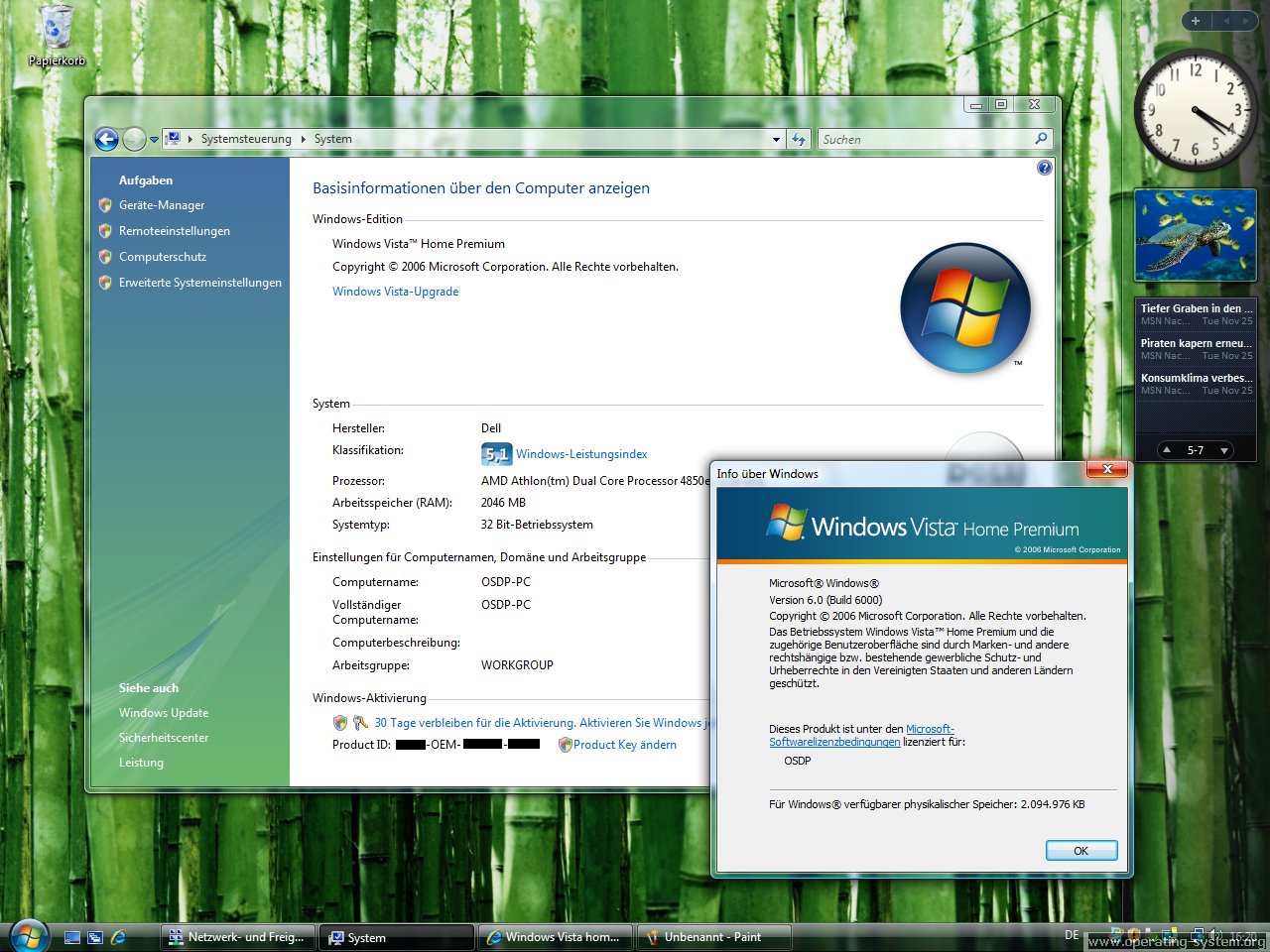
1.2 Window Vista

Windows Vista Microsoft published the new product name Vista for this new Windows Version on an event in the USA/Atlanta on 21-07-2005. This Windows Version was known under the development name Longhorn before. The installation of Vista is based on WIM (Windows Imaging format), a file-based Image Format. It compresses the contained files and can be used for the installation on several platforms from the same Image. The image
Beta 2 - Windows start menu
and version informationson
the DVD contains a pre-installation of the system directories of Windows in the Windows Imaging (.WIM) file and adapts to the hardware configuration.

Microsoft released this new Windows version 5.0, Build 2195 in February 2000. It is the desktop operating system of the new Windows 2000 platform for x86 architecture and be completed by the versions Windows 2000 Server, Windows 2000 Advanced Server and Windows 2000 Datacenter Server. As a minimum requierement for the installation a Pentium processor, 32 mbyte main memory and 650 mbyte of free hard disk storage are needed. Microsoft had planned to develop also a operating system version for the Alpha architecture, the plans were stopped after an announcement of Compaq. Compaq restricted the support to Windows NT 4.0 with service pack 6 and not higher at 1999-08-25. Microsoft stopped the development plans for the Windows 2000 32- bit of Alpha version after that.
1.4 Linux
Red Flag Linux R ed Flag Software Co., Ltd. was founded of the software research institute "Chinese Academy of Sciences" and NewMargin venture capital in June 2000. Red Flag Software maintains business relations with IBM, Intel, HP, Oracle and other companys. Red Flag aimed at the implementation of buildings for training, technological support and point of sales in China and later worldwide. In several server variants they exists currently the Function Server, Database Server, Cluster Server and Webmail Server in version 3.0.
Red Flag Linux R
 ed Flag Software Co., Ltd. was founded of the software research institute "Chinese Academy of Sciences" and NewMargin venture capital in June 2000. Red Flag Software maintains business relations with IBM, Intel, HP, Oracle and other companys. Red Flag aimed at the implementation of buildings for training, technological support and point of sales in China and later worldwide. In several server variants they exists currently the Function Server, Database Server, Cluster Server and Webmail Server in version 3.0.
MS-DOS FDISK Main Menu
Most DOS fdisk programs, including the fdisk program that came with the original Windows 95, are only capable of creating FAT partitions of types FAT12 and FAT16.
A derivative of the MS-DOS fdisk was provided with Windows 95, Windows 98, and later Windows Me. Only those fdisk versions shipping with Windows 95B or later are able to manipulate FAT32 partitions. Windows 2000 and later do not use fdisk, they have the Logical Disk Manager feature, as well as DiskPart.
Unlike the fdisk programs for other operating systems, the fdisk programs for DOS and Windows 9x/Me not only alter data in the partition table, but will also overwrite many sectors of data in the partition itself. Users must be sure the correct disk/partition has been chosen before using a DOS/Windows fdisk for partitioning.
The implementation of fdisk in FreeDOS has many advanced features and is free software.